Using metafield – Dynamic source
Create metafield
In your Shopify admin, go to Settings > Custom data. We will add new metafield to Product (You can add it to other parts)

Then click Add > definition to add new metafield definition. Follow this instruction:
Fill metafield name: Lookfy Gallery ID
Click “Select type”
Choose Integer
Click Save

Add app block
Go to your theme customize, choose product (if you add metafield to another part, you should choose the corresponding template)
Click Add section then choose LookBook & Gallery
Connect dynamic source
In the LookBook & Gallery app block, click “Insert dynamic source” icon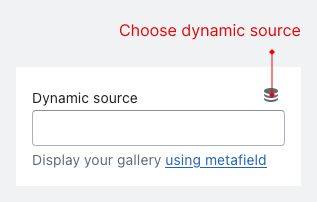
Then choose Lookfy Gallery ID (metafield name that you fill when create new definition)

The Gallery id here will be ignore
Fill Gallery id in your product

Edit your product (that using the template) and fill your id
How do I find the gallery ID?
CAUTION: When adding a new product, you will not see the metafield card. It will appear after you save the product.
Updated on: